Collecting guest photos
Live wedding photo slideshow: setup, screen and pre-approval
28 September 2026 · 6 min read
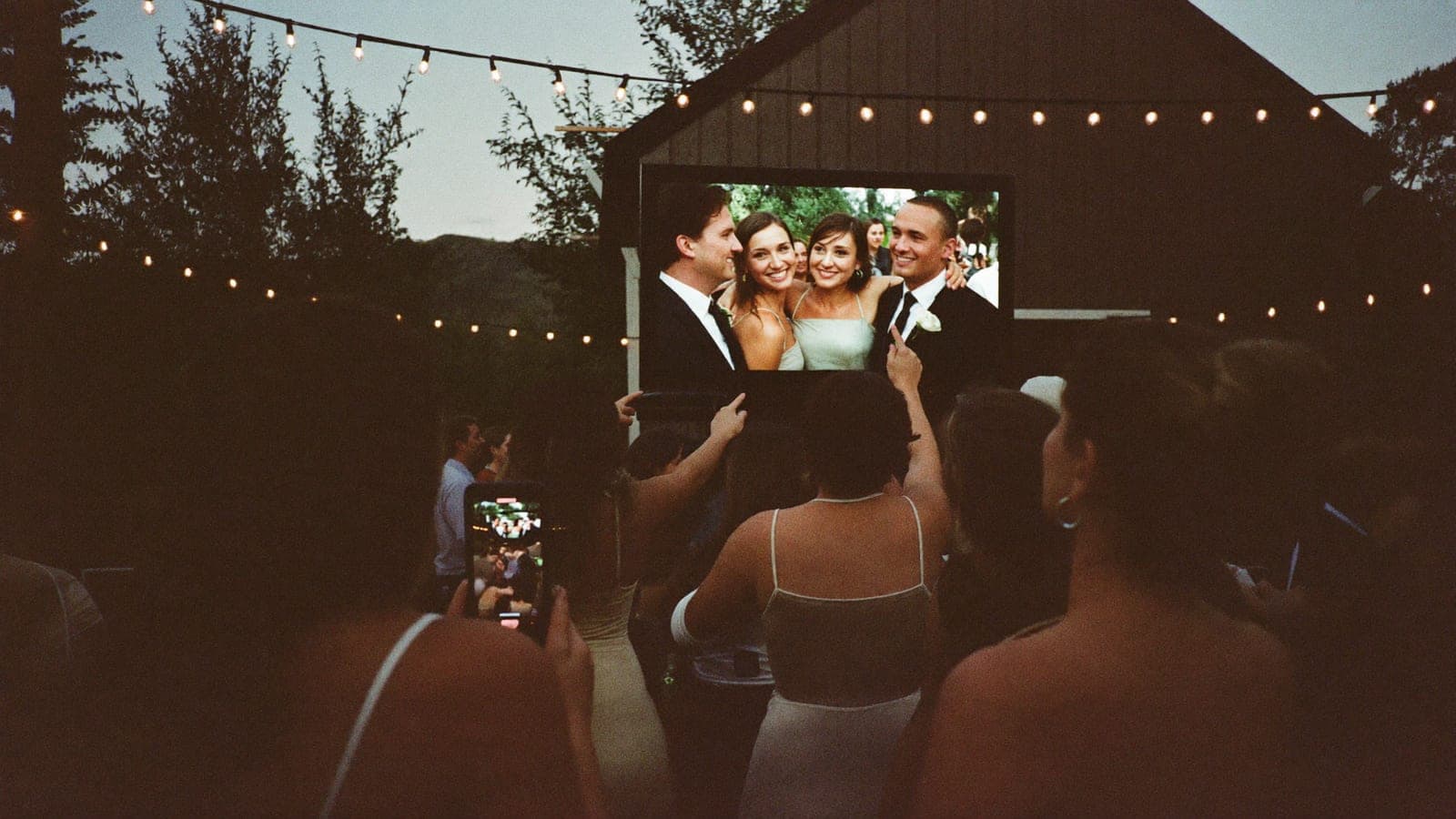
A live wedding photo slideshow is your guest album shown full screen on a TV or projector, refreshing on its own as new photos arrive. You need a screen, a laptop with the slideshow page open in a browser, an HDMI cable and an internet connection; nothing else. Turn on pre-approval if you want someone to look at each upload before it reaches the screen, give that job to your best man or maid of honour, and pause the slideshow during the speeches. Below: each of those, why the screen makes guests share more, and a checklist for the day.
What a live slideshow is
With a QR code wedding photo album, every photo and video your guests upload lands in one album. The live slideshow is that album's display mode: a full-screen loop that picks up new uploads automatically. You open it in a browser, put the browser on a screen, and it runs. No software, no technician.
Someone uploads a photo, and soon after it is on the screen next to the dance floor, because every new upload joins the loop. They nudge their table, the table gets their phones out, and the loop feeds itself.
What you need
- A screen. The venue's TV (most function rooms have one; ask), a projector and screen, or a large monitor for a smaller party.
- Something that runs a browser. A laptop is the easiest: HDMI to the screen, browser full screen, done. A TV with a built-in browser also works, but a laptop is the setup you can fix yourself.
- Internet. The slideshow fetches new photos over the connection, so it needs to stay online. Venue Wi-Fi first, a phone hotspot as backup.
Where and when to show it
Yes:
- During drinks and dinner, on a screen that is visible but not dominant.
- During the party, next to or behind the dance floor. This is the slideshow's best hour: the photos of this evening, appearing this evening. Uploads in our albums peak between 9 pm and 11 pm, exactly when the screen gets the most eyes.
No:
- During the ceremony. All attention belongs to the two of you. If you are going phone-free for the vows, see unplugged wedding ceremony.
- During the speeches. More on that below.
Approve photos before they hit the screen
The question every couple asks: can something end up on the screen that we do not want there? In practice, the wildest upload at most weddings is a blurry photo of the ceiling. But you do not have to rely on that.
Turn on pre-approval in the album settings. Uploads then stay hidden until someone approves them, and only approved photos show in the feed and on the slideshow. Guests upload the way they always do; they see their own photo marked as waiting for approval, and nobody else sees it until it is approved.
Who approves on the day? Not you. You will be busy from the first coffee to the last dance. Give the job to one person: the best man, the maid of honour, or whoever is running the day, and invite them from your dashboard to manage the album so they can approve. Approving is a tap per photo, or one tap for everything waiting, done between courses. Rule of thumb: approve everything except what would embarrass a guest; when in doubt, leave it hidden and ask later.
Prefer spontaneity? Leave pre-approval off. You can always hide a photo afterwards, and hidden photos vanish from the screen straight away.
Screen, cable, browser, network
The technical part, in the order things usually fail:
- Screen. Confirm with the venue that the TV or projector has a free HDMI input and a power socket nearby.
- Cable. Bring your own HDMI cable, 3 to 5 m (10 to 16 ft), plus the adapter your laptop needs (usually USB-C to HDMI). Venues lose cables.
- Browser. Open the slideshow page from your album, press full screen, and bookmark it. Switch off sleep mode, screen saver and notifications, and plug the laptop into power. A laptop going to sleep at half past ten is the most common reason a slideshow stops.
- Network. Test the venue Wi-Fi in the room where the screen will stand, not at reception. If it is slow or drops, use a hotspot from a spare phone that stays next to the laptop on a charger. The slideshow needs little bandwidth; it needs a connection that does not drop.
Do a dry run, on the venue screen if you can or on your own TV at home: upload a photo from a second phone and watch it appear.
Pause during the speeches
A moving screen pulls eyes away from whoever is speaking, and speakers notice. Pause the slideshow before the first speech, or switch the screen to a still image (your names and the date works well), and start it again when the speeches are done. The person who approves photos is the person who presses pause; put it on their list.
The same goes for a video message, a surprise performance or the cake: whenever you want the room looking one way, the screen goes still.
Why the slideshow makes guests share more
A card on the table asks guests to share. A screen shows them that other people already have. That difference matters more than any wording.
When a guest sees their own photo appear three metres wide, they take another. When their neighbour sees it, they scan the code. The slideshow turns a private act (uploading) into a visible one, and visible is contagious. On average, a Pixavo wedding album ends up with 207 photos and videos from about 15 guests who upload; a screen next to the dance floor is the single best way to push those numbers up. It also answers the question guests never ask out loud: does anyone actually see what I upload? Yes, the whole room does.
Checklist for the day
A week ahead, then again that morning.
- Screen confirmed with the venue, HDMI input free, power socket nearby
- Laptop tested on that screen, or on any TV with the same cable and adapter
- Own HDMI cable and adapter packed
- Venue Wi-Fi password noted; hotspot phone charged as backup
- Slideshow page bookmarked, full screen tested
- Sleep mode, screen saver and notifications off; laptop on mains power
- Pre-approval decided: on with a named approver, or off
- One person owns start, pause and restart (not you)
- Pause moments listed: speeches, video, cake
- QR code signs on every table, so the screen has something to show
Frequently asked questions
What do I need for a live wedding slideshow?
A TV or projector, a laptop with the slideshow page open in a browser, an HDMI cable, and an internet connection. Setting up the album itself takes about five minutes.
Can I approve photos before they appear on the screen?
Yes. Turn on pre-approval and uploads stay hidden until someone approves them. Assign that to your best man, maid of honour or the person running the day, and invite them to manage the album so they can do it from their own phone.
Do videos show in the slideshow too?
Yes. Video is included in every package, and guests upload videos the same way as photos, from the browser, no app. On the screen they play without sound, so they never talk over the room.
What if the venue Wi-Fi is bad?
Use a hotspot from a spare phone that stays next to the laptop. The slideshow needs a stable connection, not a fast one.
Should the slideshow run during the ceremony?
No. Keep it for drinks, dinner and the party, and pause it for speeches.
Next step
Print the signs that feed the screen: wedding photo QR code signs and table cards. Or see how it works: the live slideshow is included in every package, one-time, from €59.
Get your album ready
One QR code, no app, and every photo and video from your guests in one living album.
Read next
Wedding photo QR code signs and table cards: wording, sizes and how to test them
Where to put wedding photo QR code signs, which sizes work, 8 lines of wording to copy, print rules, how to test the code, and whether it expires.
5 min read
Wedding photo challenges your guests will actually do (30 ideas, all optional)
30 wedding photo challenges for guests, grouped by moment and all optional: at the table, on the dance floor, with the couple, for kids and older guests.
5 min read
QR code wedding photo album: how does it work?
With a QR code photo album your wedding guests upload all their photos to one place, no app needed. How it works, what it costs, what to look for.
4 min read